
Desktop Application Configuration
Gluon v2 desktop application is the engine that manages your projects, monitors file changes, and communicates with the Chrome extension. Learn all key settings.
1. License & Updates
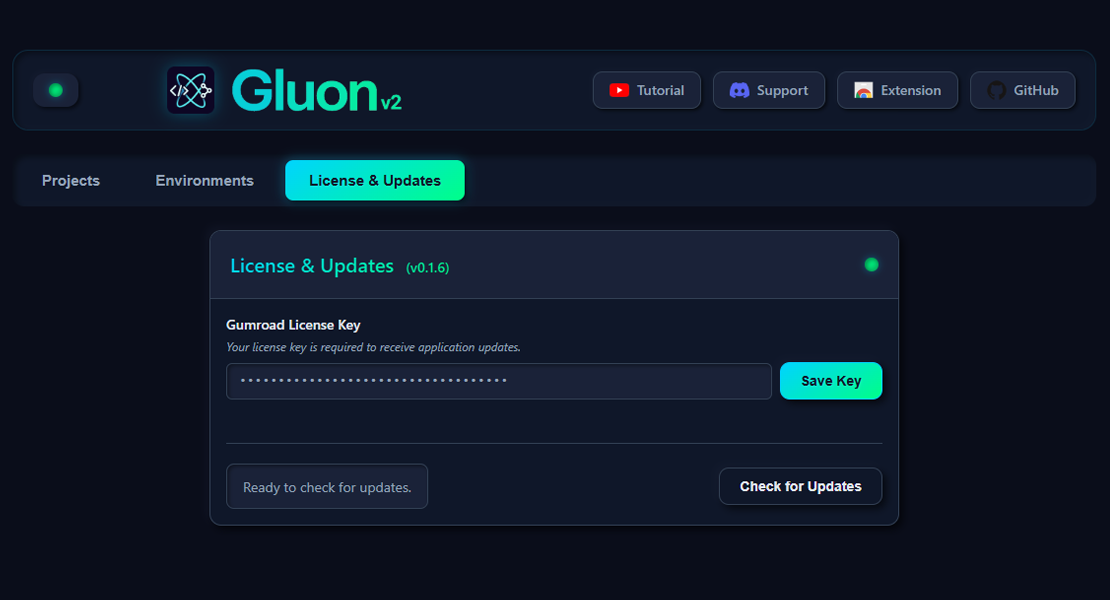
After first launch you'll see license activation screen. Enter the license key received after purchase to unlock all features.
💡 Tips
- License key can be found in purchase confirmation email
- App automatically checks for updates on startup
- You can manually force update check in Settings menu
2. Adding Project Directory
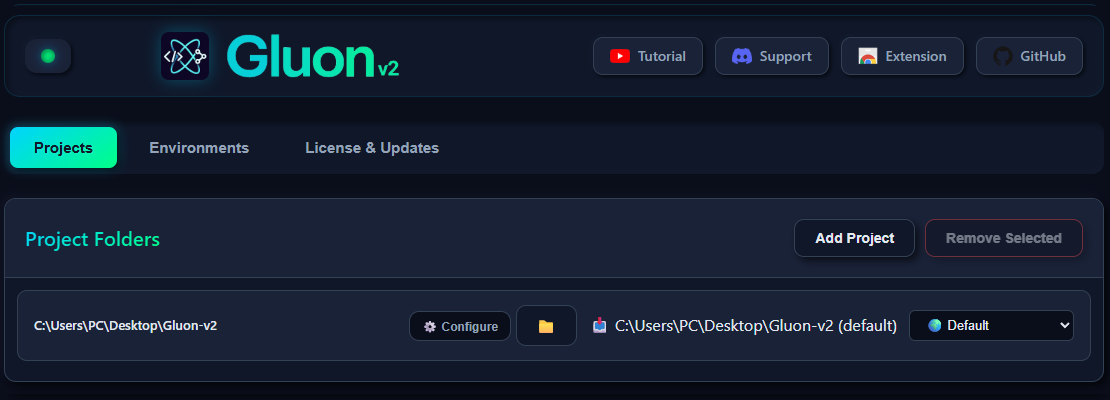
For Gluon to work with your code, you need to add project directory. Click "Add Project" and select main project folder.
⚠️ Important
Select root project directory (containing .git, package.json etc.), not individual subfolders. Gluon will automatically scan entire structure.
3. Setting Exclusions & Allowed Extensions
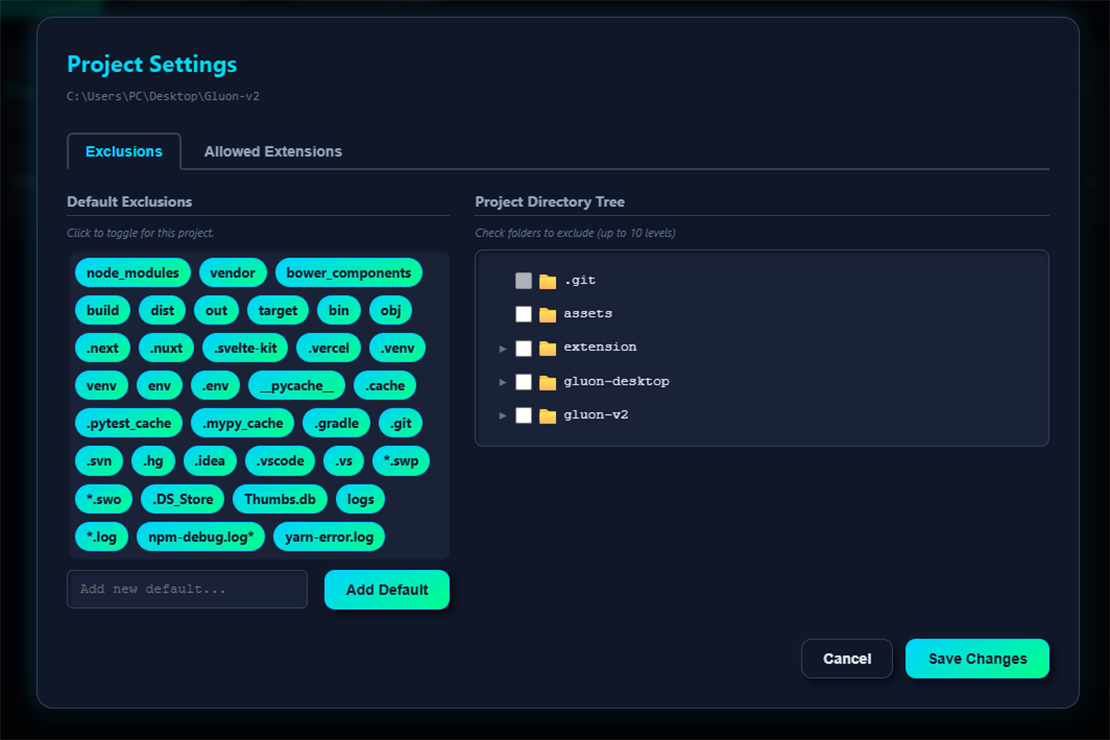
Gluon allows precise control over which files will be visible. You can exclude entire folders (e.g. node_modules, .git) and specify allowed file extensions.
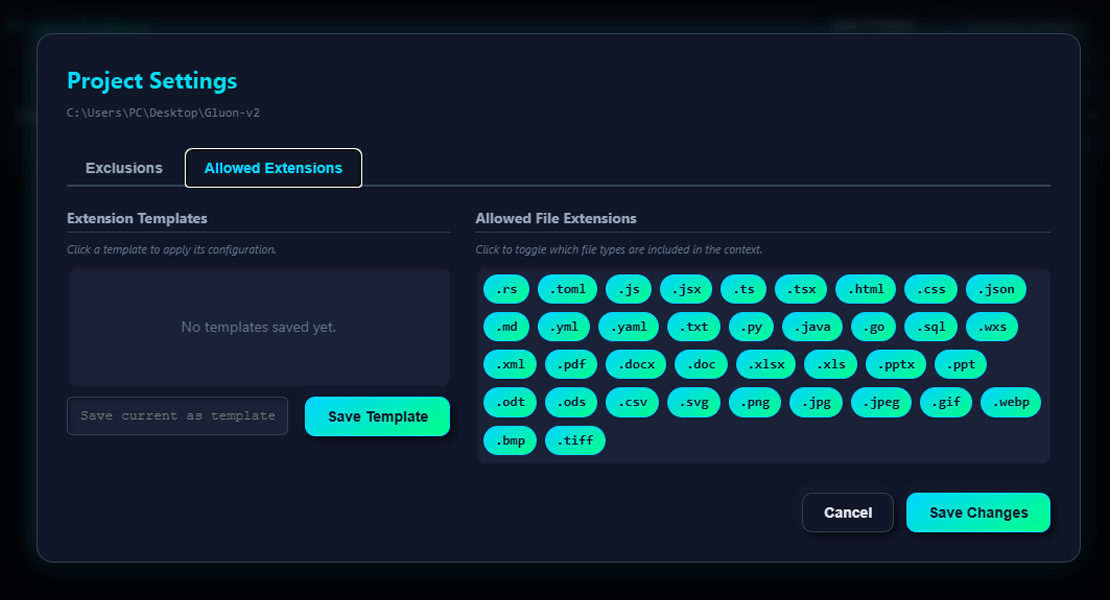
💡 Recommended Exclusions
node_modules/,.git/,dist/,build/coverage/,.next/,.nuxt/__pycache__/,venv/,.venv/
4. Environment & Prompts Configuration
Environments are sets of system prompts that you can quickly switch depending on task type. You can create different environments for refactoring, debugging, documentation etc.
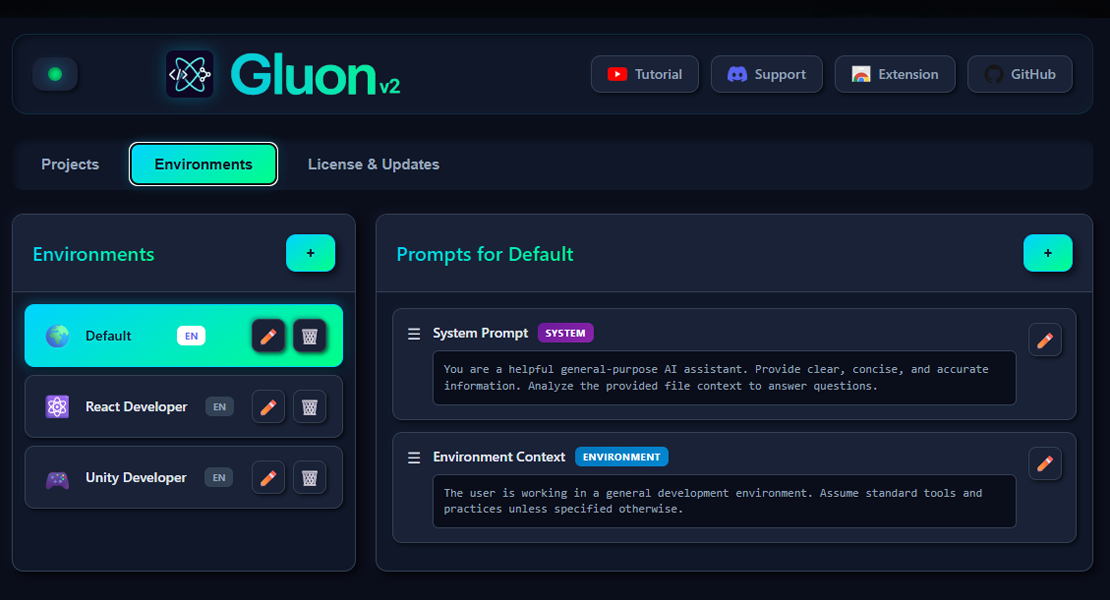
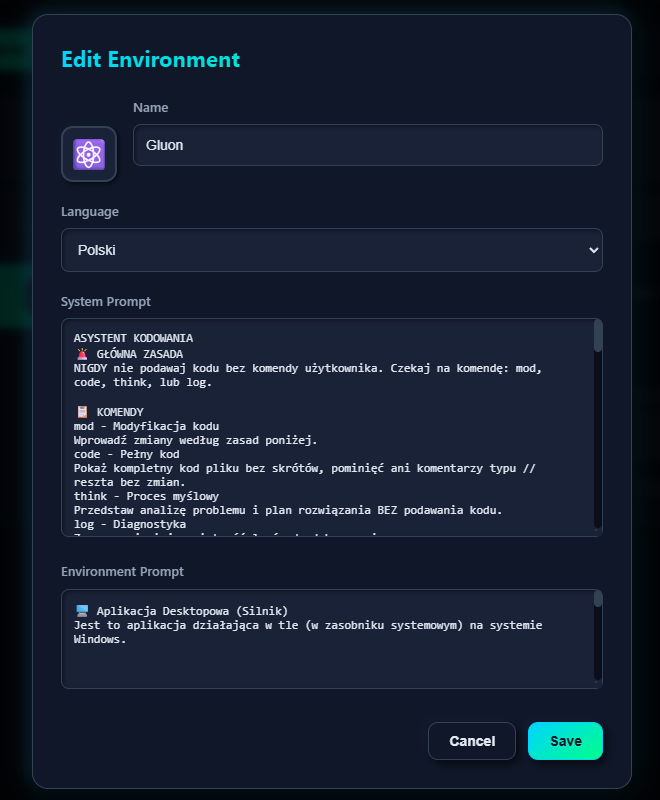
📝 Example Environment
Name: Code Review
Prompt:
You are an expert code reviewer. Focus on:
- Code quality and best practices
- Potential bugs and edge cases
- Performance optimizations
- Security vulnerabilities