

Chrome Extension Usage
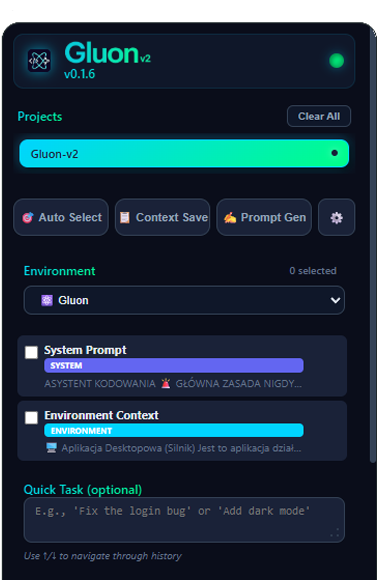
Chrome extension is the main user interface of Gluon v2. It works as side panel in browser, giving you access to all features without leaving the AI page.
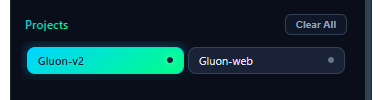
1. Projects Selector
At the top of extension there's a dropdown allowing quick switching between projects added in desktop application.
2. Feature Buttons
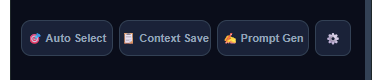
Main Gluon features available with one click: Auto Select (automatic file selection), Context Save (context save) and Prompt Generator (prompt generator).
💡 Features
- Auto Select: AI automatically selects files based on task description
- Context Save: Saves current context for reuse
- Prompt Generator: Generates optimized prompt for AI
3. Template Management Panel
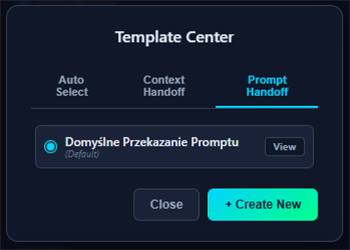
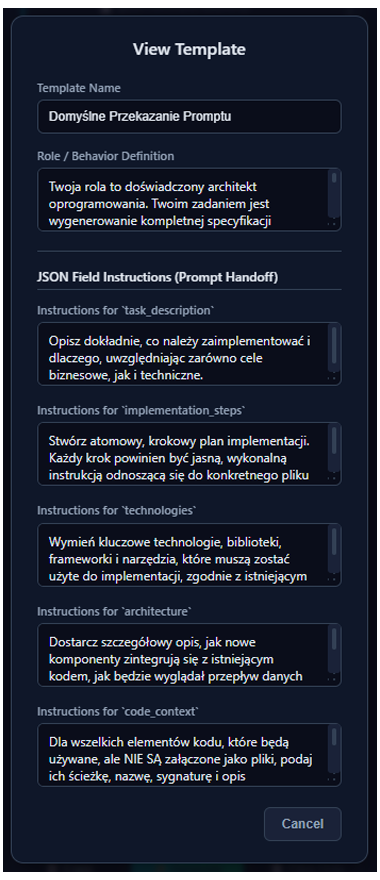
Here you manage templates for AI functions. Click Template Center button in sidebar to open panel.
💡 More information
Detailed description of each field and how to use it can be found in Template Configuration section.
4. Environments & Prompts Section
Quick switching between environments configured in desktop application. You can change environment without leaving browser.
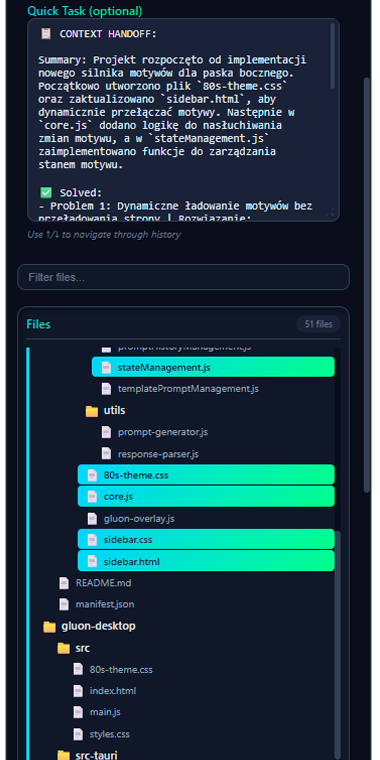
5. Quick Task Input
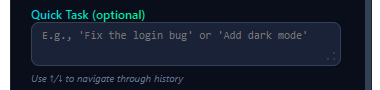
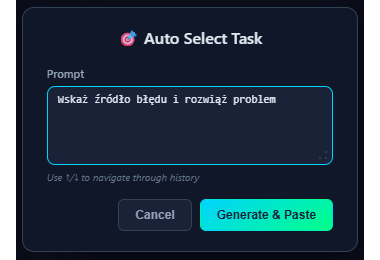
Quick text field to describe task for Auto Select feature. Describe what you want to do, and AI will select appropriate files.
6. File Tree
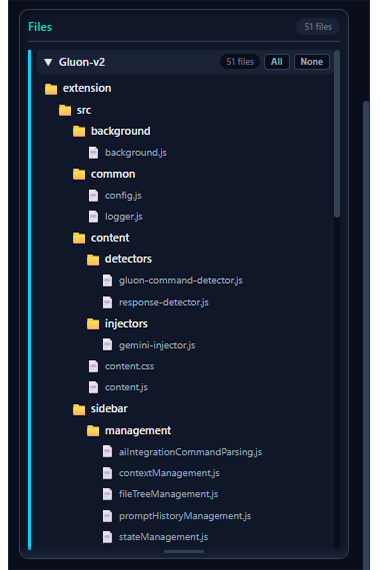
Interactive project file tree. Click checkboxes to select files for context. You can expand/collapse folders and search files.
7. Context Saves (Saves Tiles)
History of saved contexts. Each save contains file list, environment and timestamp. You can quickly restore previous configurations.
💡 Tips
- Save context before starting each major task
- You can add save to favorites by clicking star
- Favorite saves are always at top of list